WooCommerce
Product Card
Showcase all of your WooCommerce product details in an elegant and simple fashion. View rating, category, name, price, variables and more!
Required Plugins
- Elementor
- WooCommerce
- Variation Swatches for WooCommerce (This plugin is required only if you want to be able to display color attributes)
Required Fields
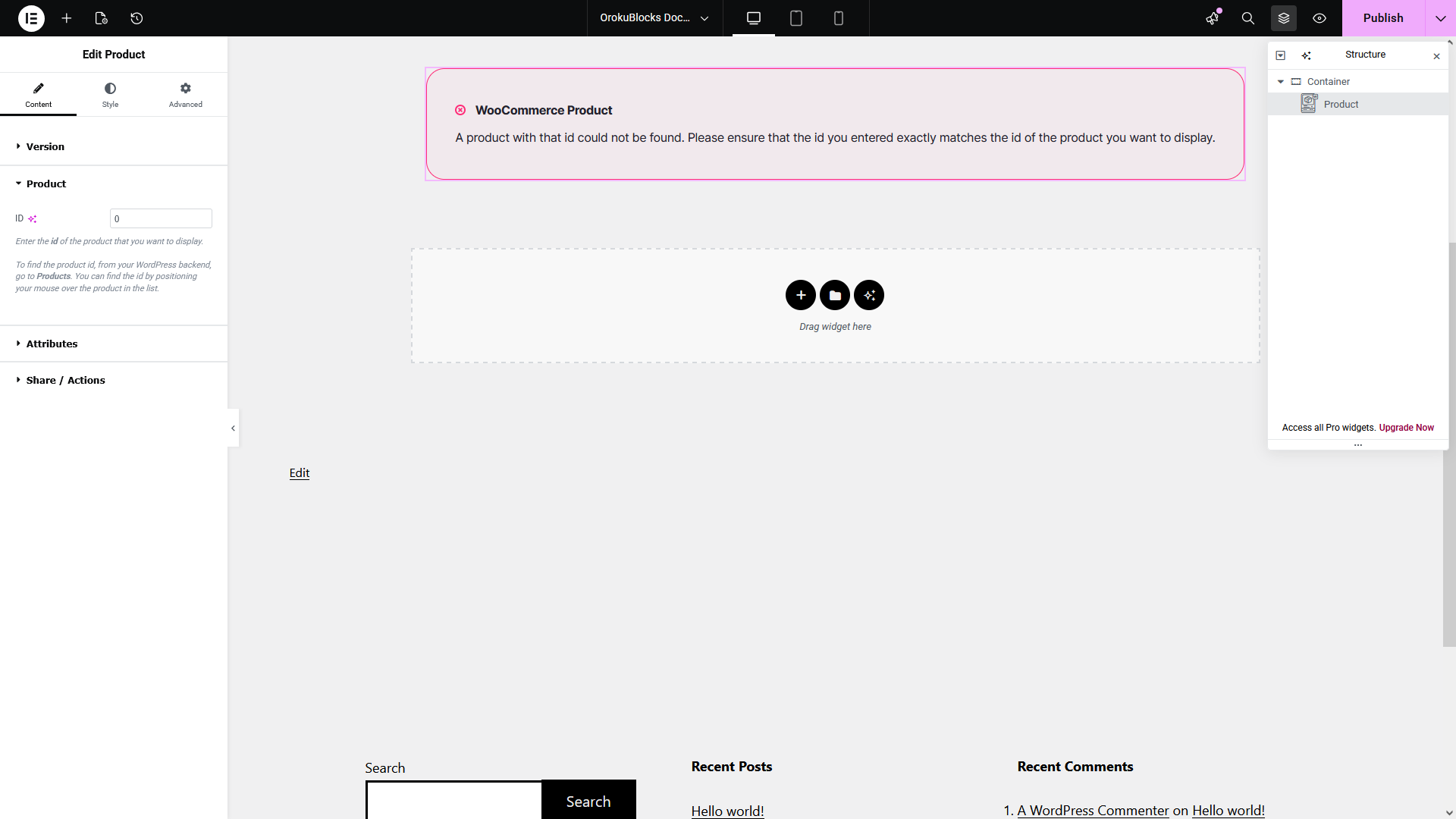
The widget requires you to provide the id of the product you want to display:
- Open the Product options group
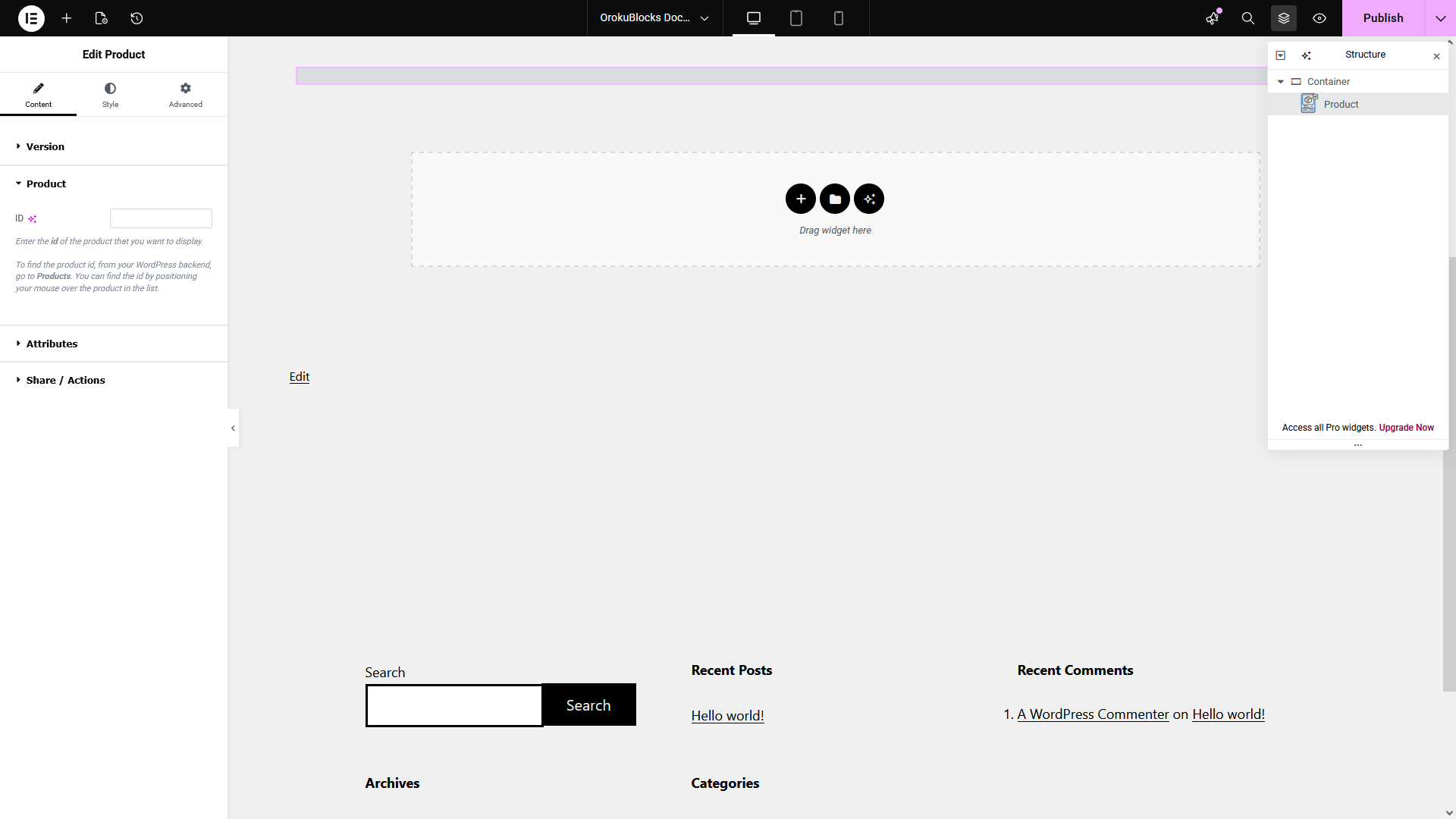
- From your WordPress dashboard, go to Products
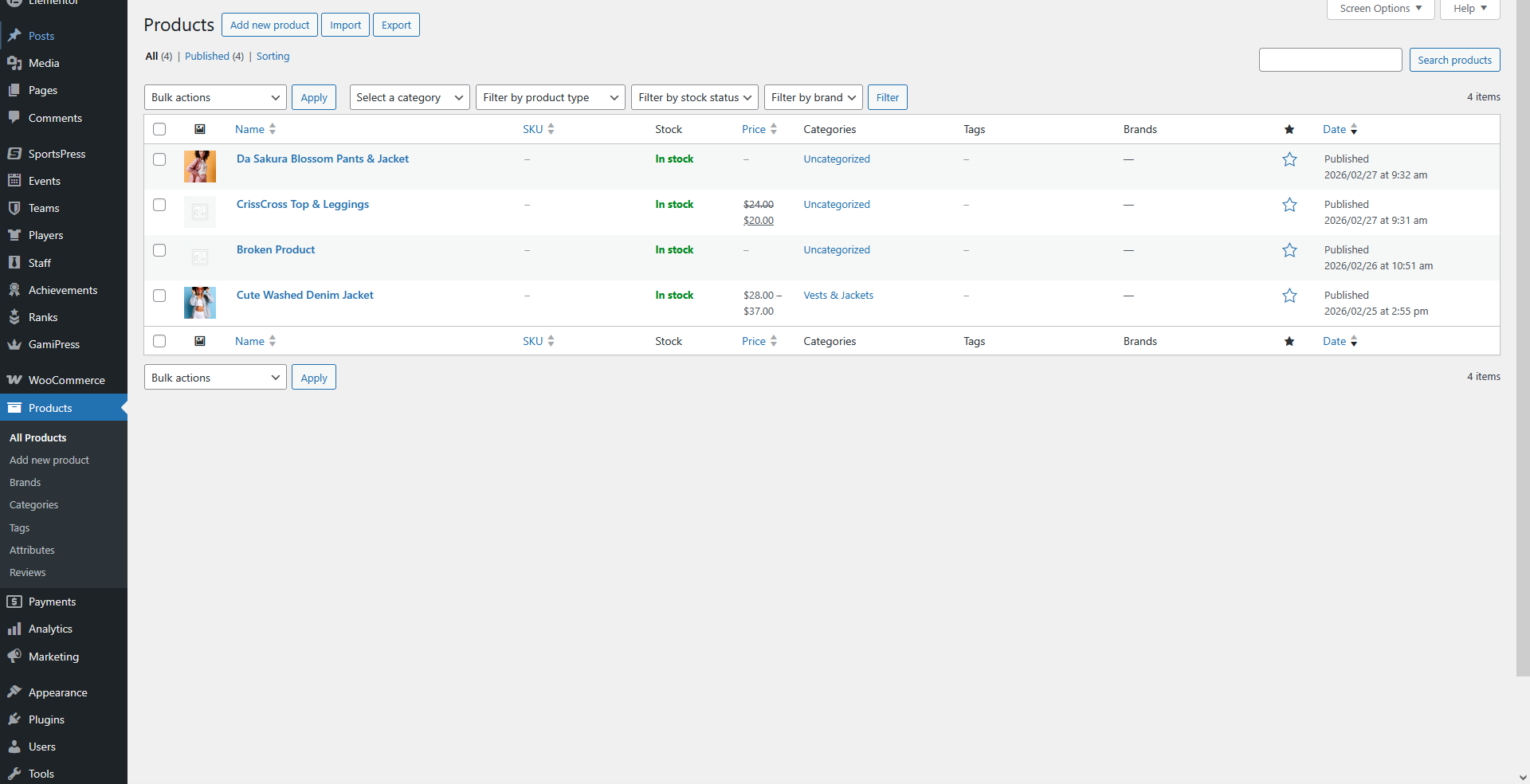
- Position your mouse over the product in the list
- The number that displays next to ID: is the product id
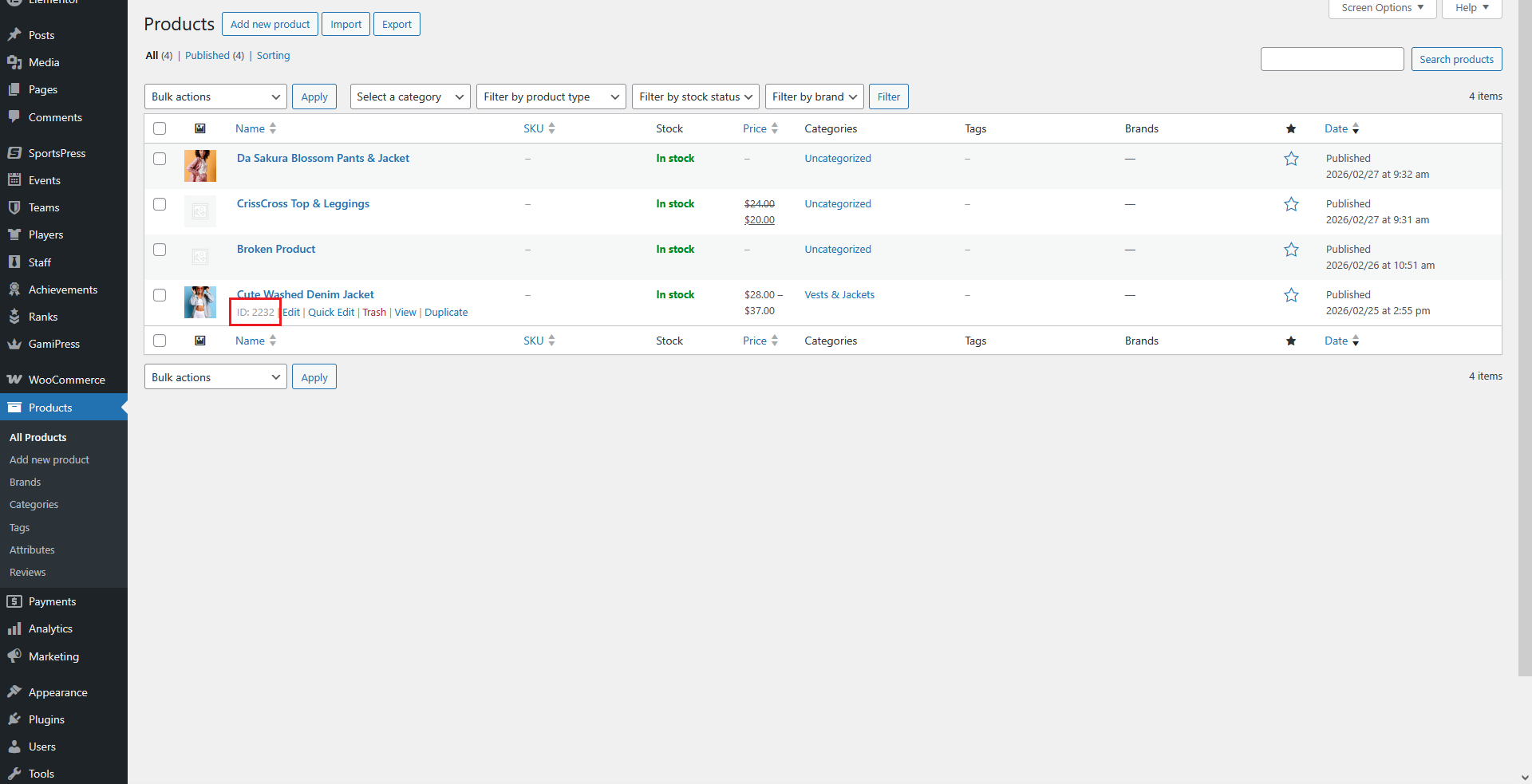
- Go back to your widget
- Enter the product id in the ID field
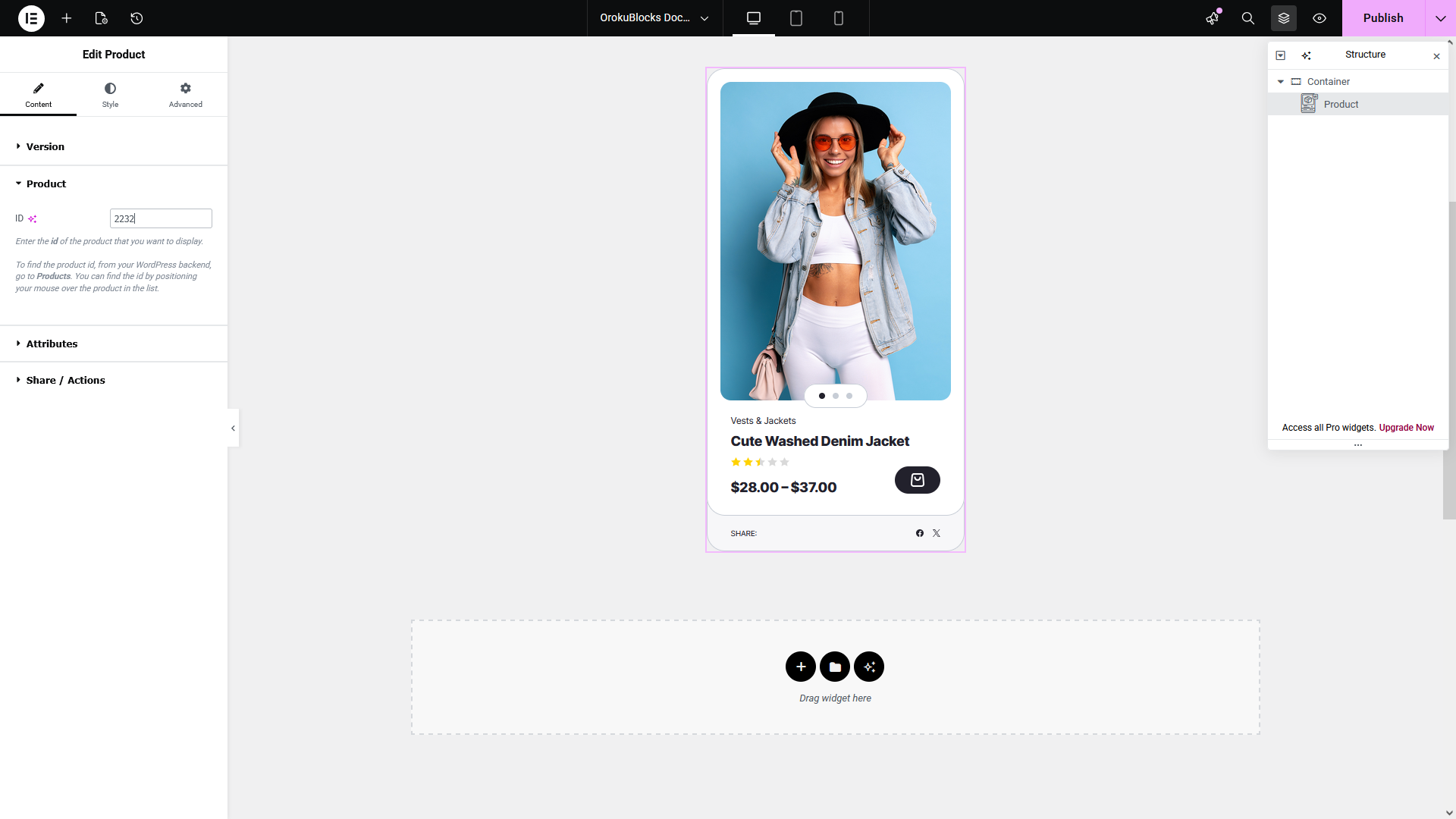
- If you enter the value incorrectly or the product doesn't exist, an error message will be displayed
Options
Widget customization
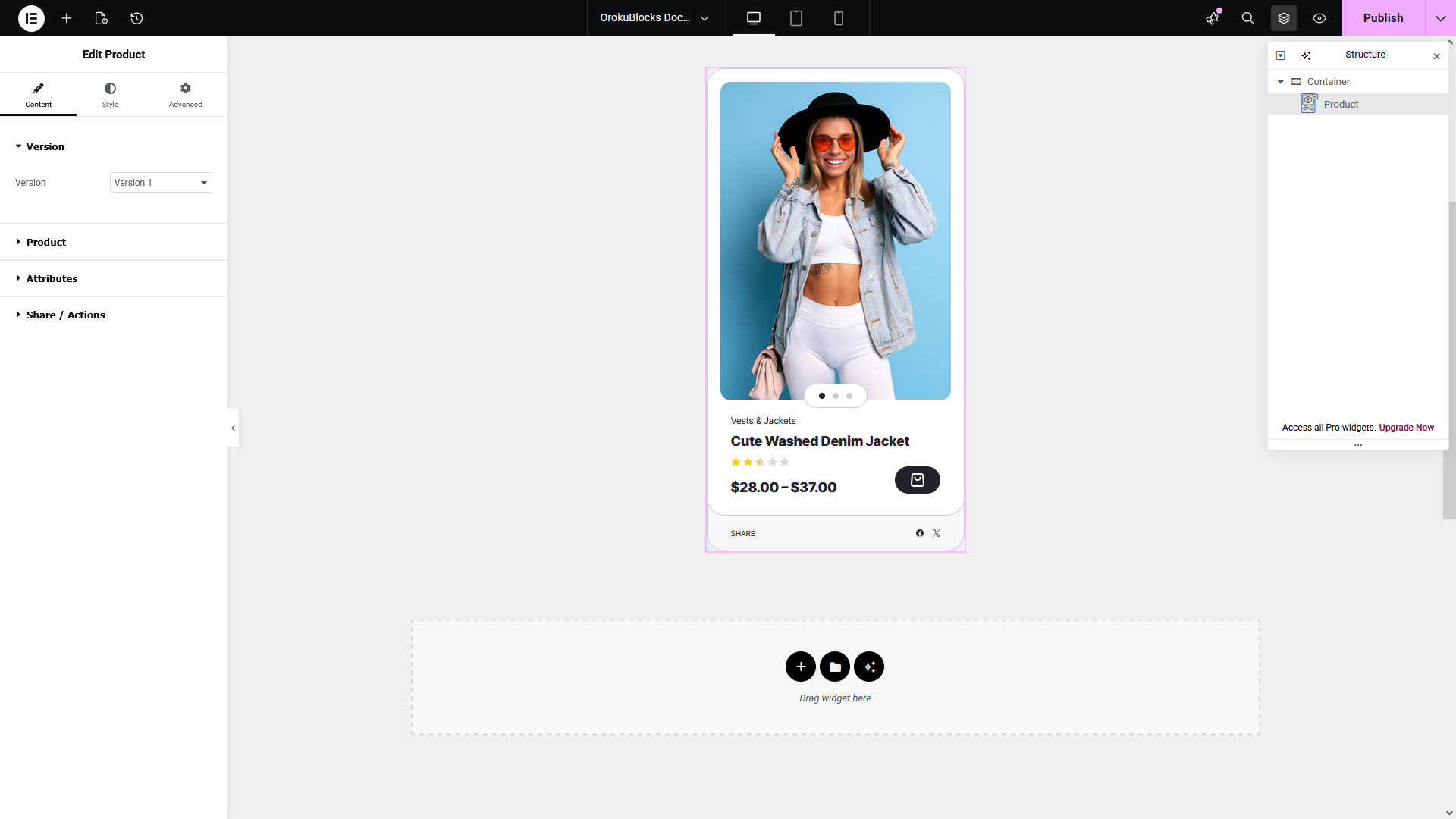
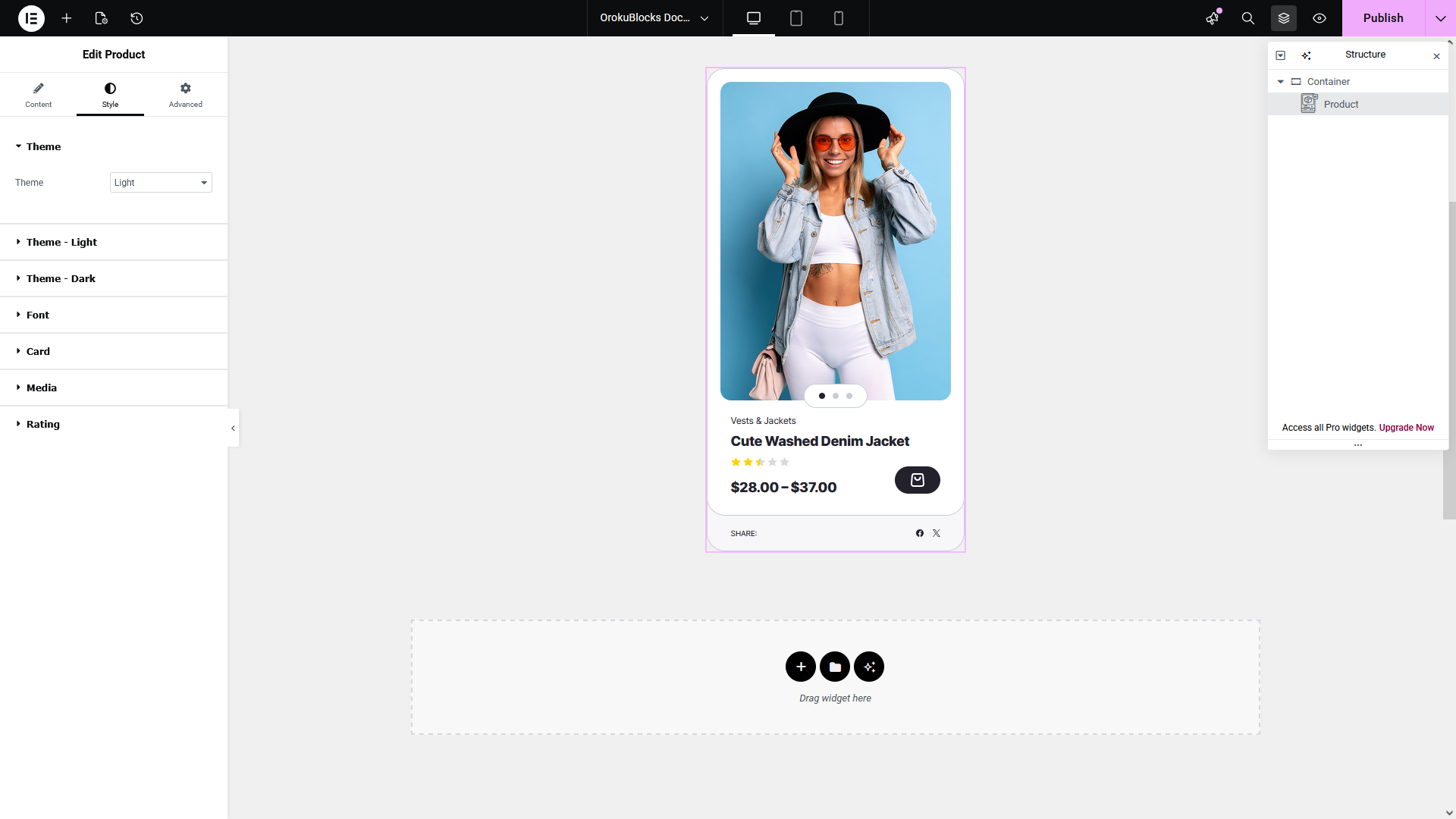
In the following section you can see a preview of how this widget and its option categories and groups display on the Elementor page builder.
Content
Style
Display Product Attributes
Supported attributes
In order to display attributes in the widget, you need to enter the id of the attributes separated by a comma (,) in the Attributes field.
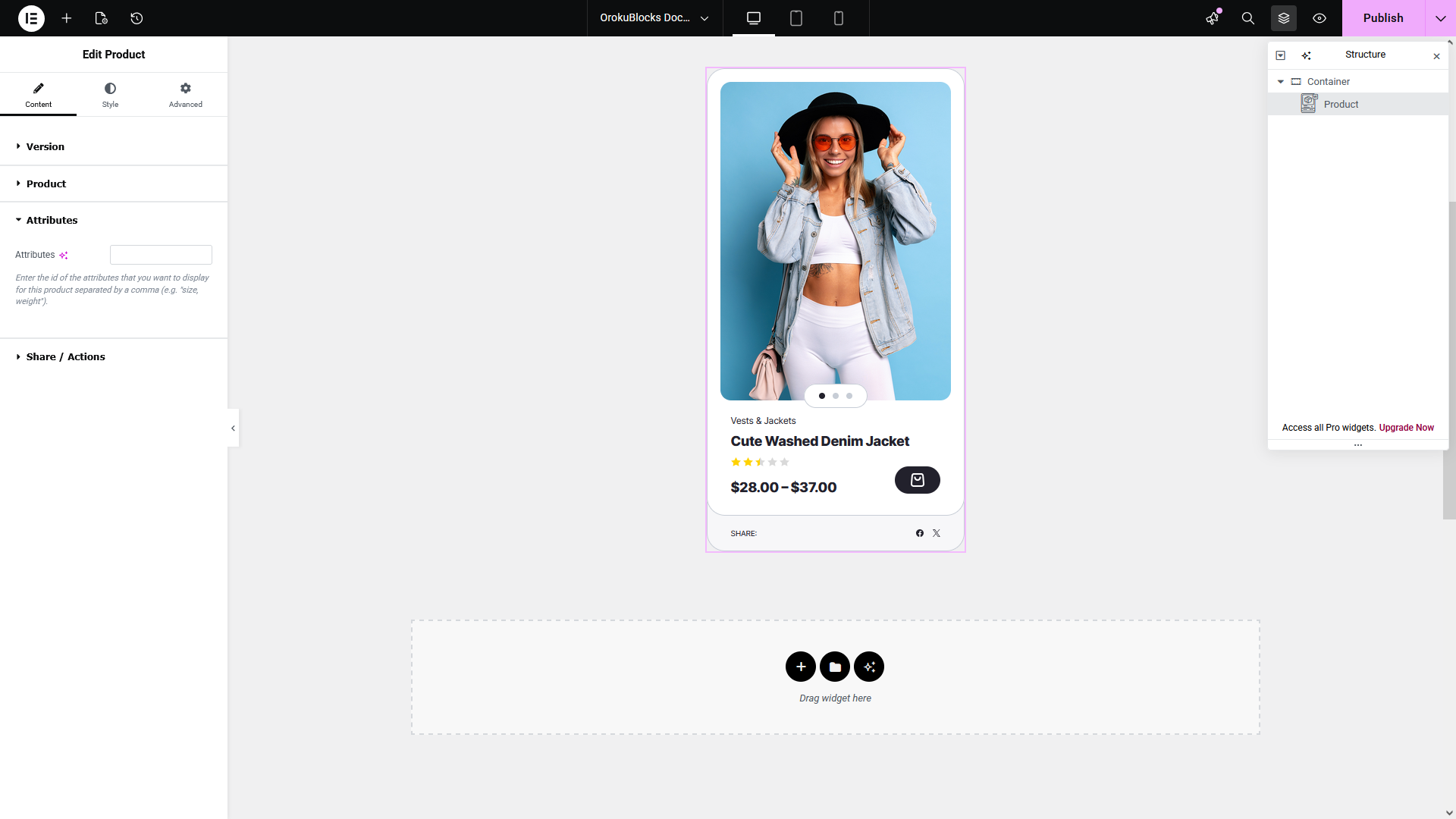
Below, we include an example where we display a Size attribute that was created directly inside the product, and a Color attribute that was created using the Products > Attributes menu and was assigned color values using the functionality added by the Variation Swatches for WooCommerce plugin:
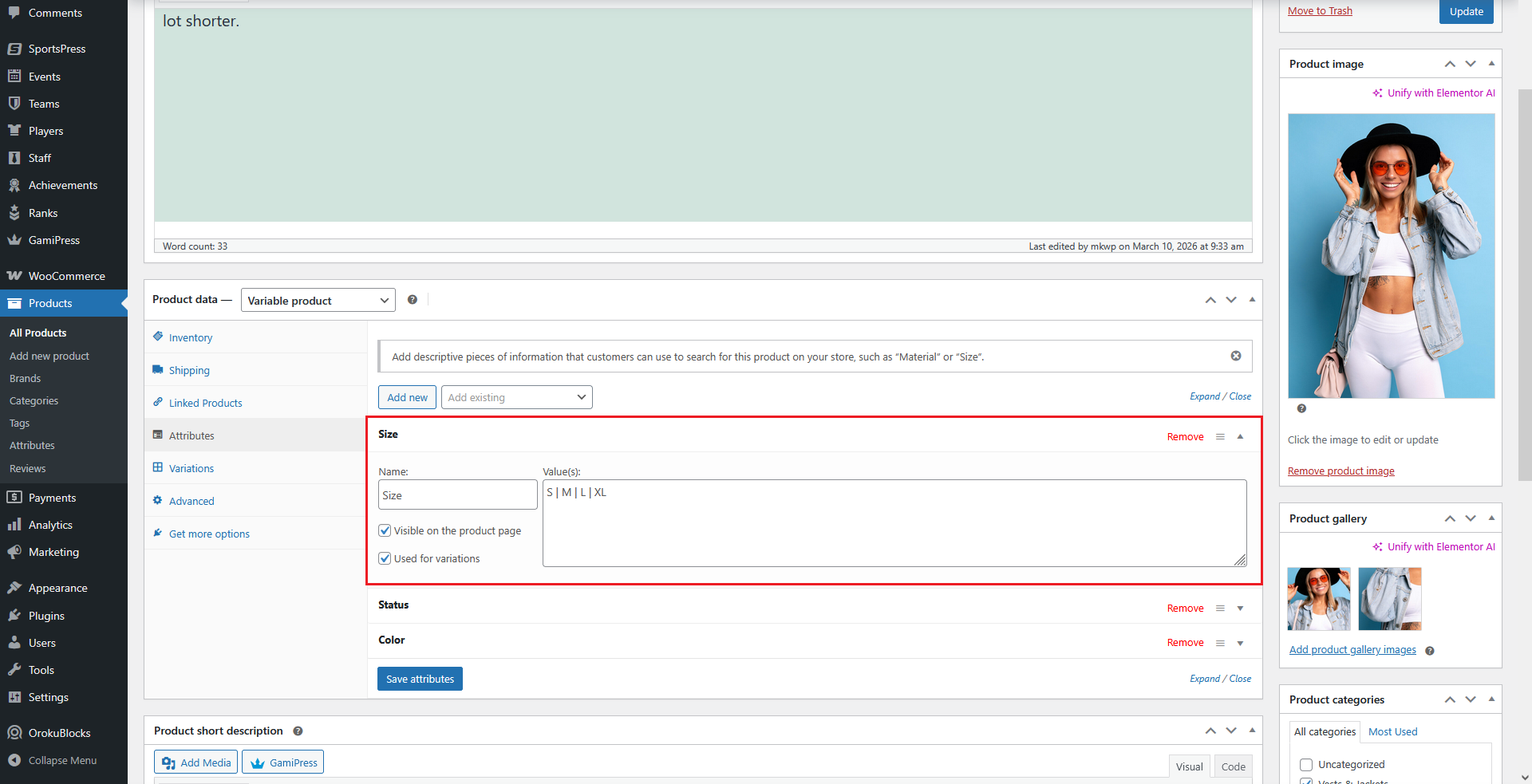
Size
- Add an attribute to the product by using the Add new button
- Assign a name to it, we choose Size in this example
- Enter values for the attribute separated by the character | which, as indicated by the plugin, has to be used to separate different options
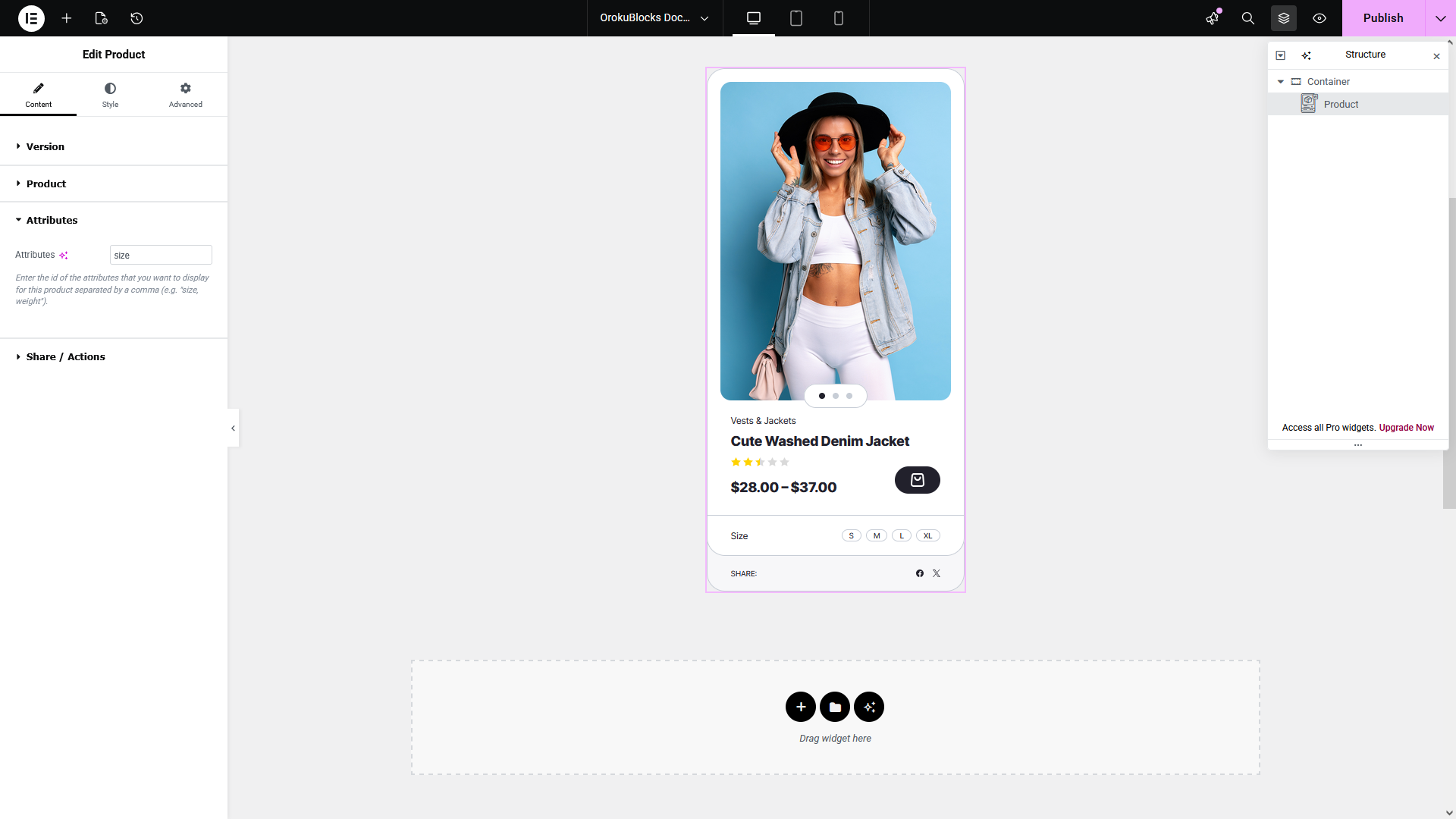
- Go back to your widget
- Enter size in the Attributes field (the id for attributes created directly inside the product is the name of the attribute in lowercase)
Color
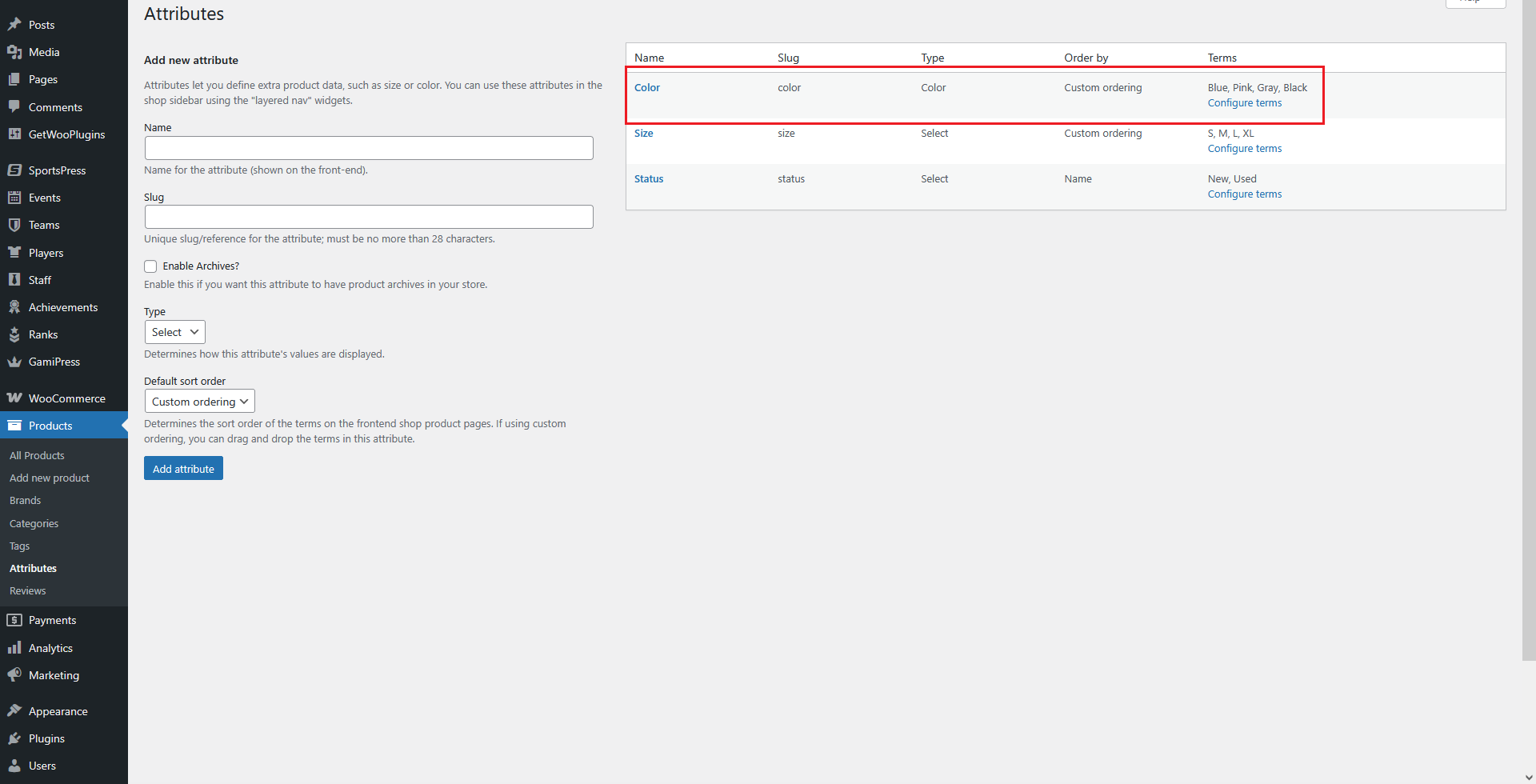
- Create the attribute by using the Products > Attributes menu
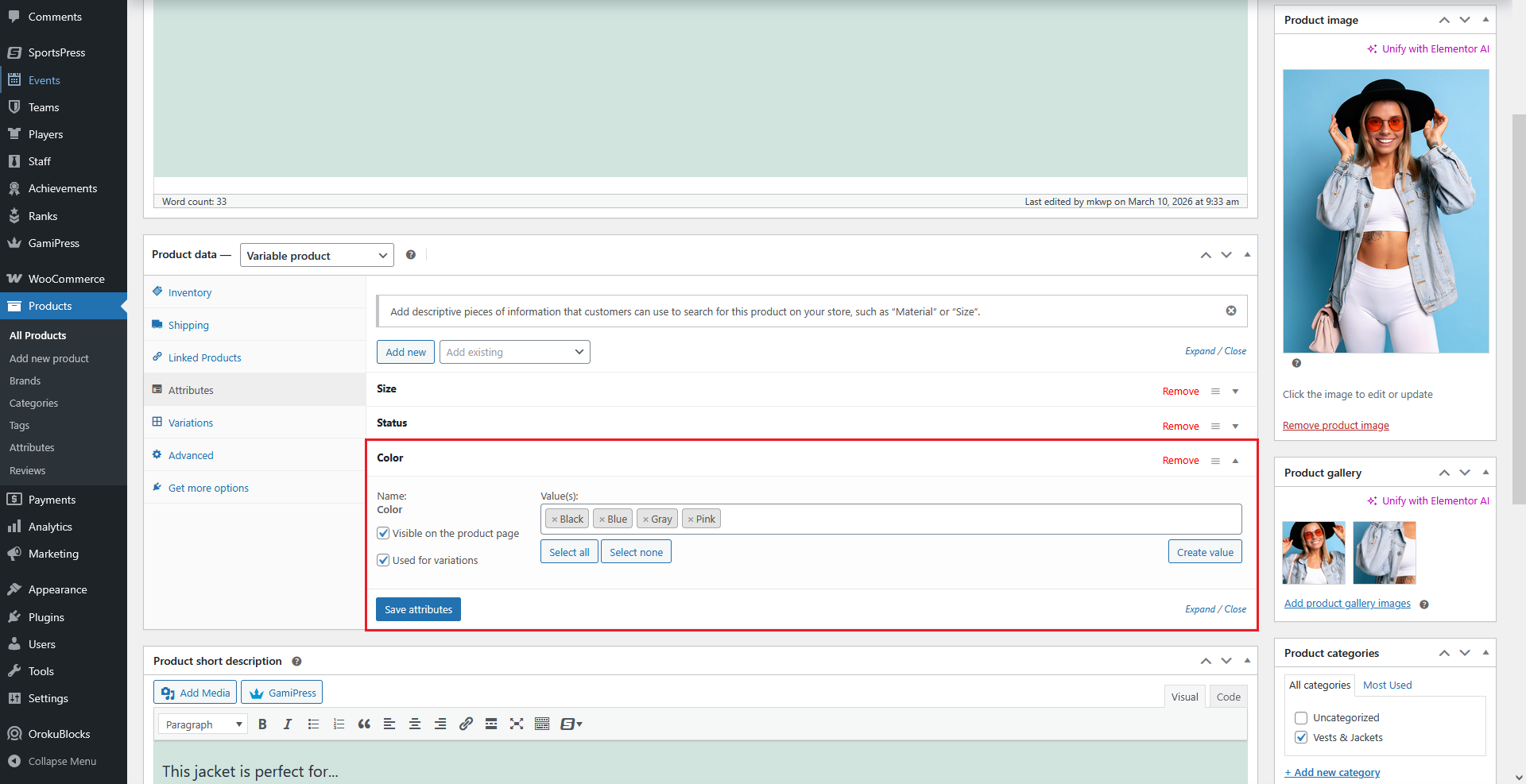
- Add the attribute to the product by using the Add existing button
- We choose the previously created attribute, named Color in this example
- Select the attribute values you want to display
- Go back to your widget
- The id for attributes created by using the Products > Attributes menu is the name of the attribute in lowercase with pa_ added as prefix
- Enter pa_color in the Attributes field, separating it with a comma (,) if there are other attribute values in the field
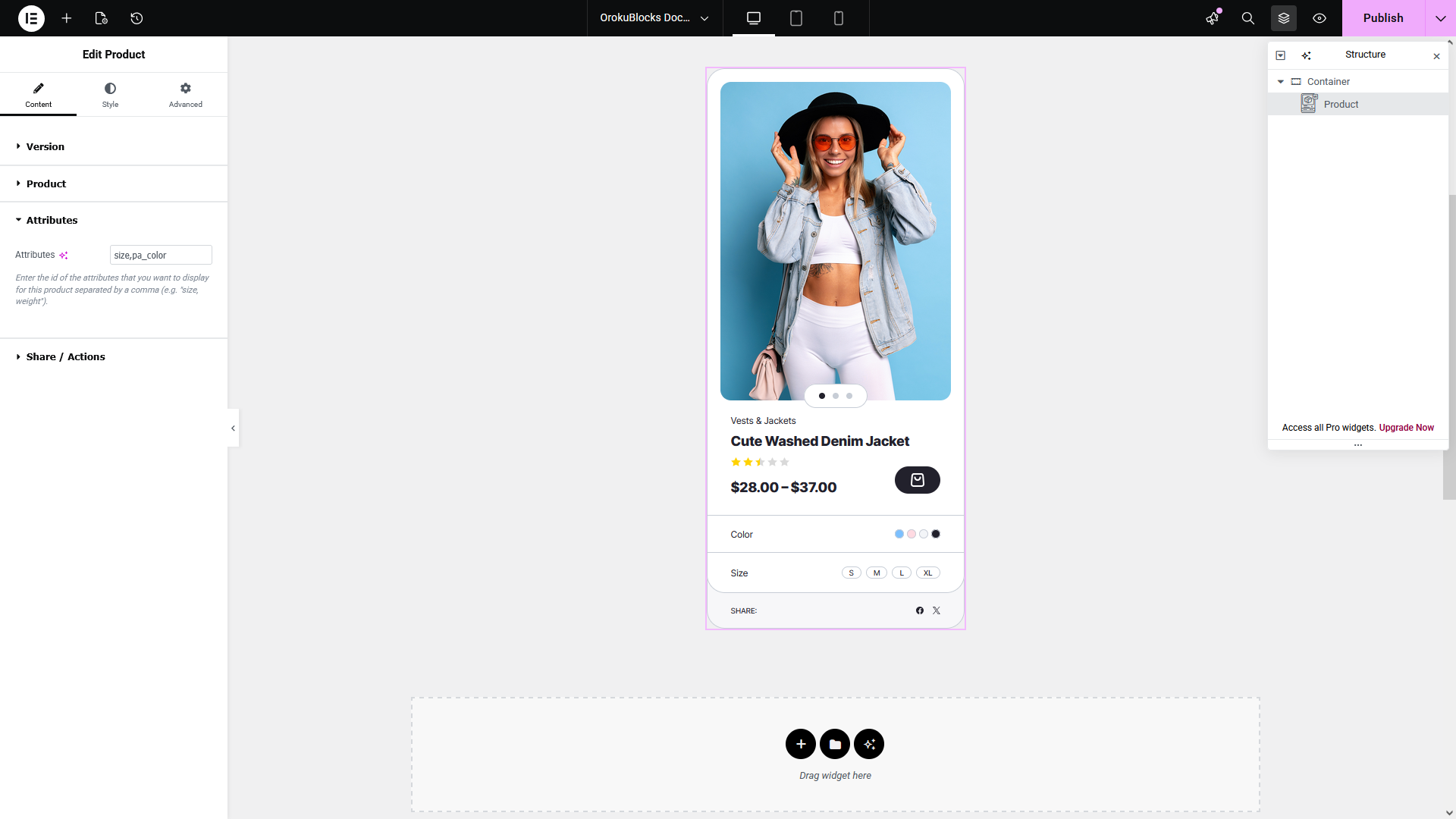
If you are using the Variation Swatches for WooCommerce plugin, and have created this attribute with a type of Color and added appropiate colors to each attribute value, then they will display as seen in the previous screenshot.
Demo
We have a demo of this widget for each of its versions that also includes controls for changing between the light and dark theme variants.