Getting Started
Install and Setup
In this guide you will learn how to install the plugin on your WordPress site so you can start using it. After completing this, we recommend taking a look at the Features and Widgets part of the documentation, which have detailed information on each of the plugin included pages as well as how to use the widgets.
Install
Free and Pro Versions
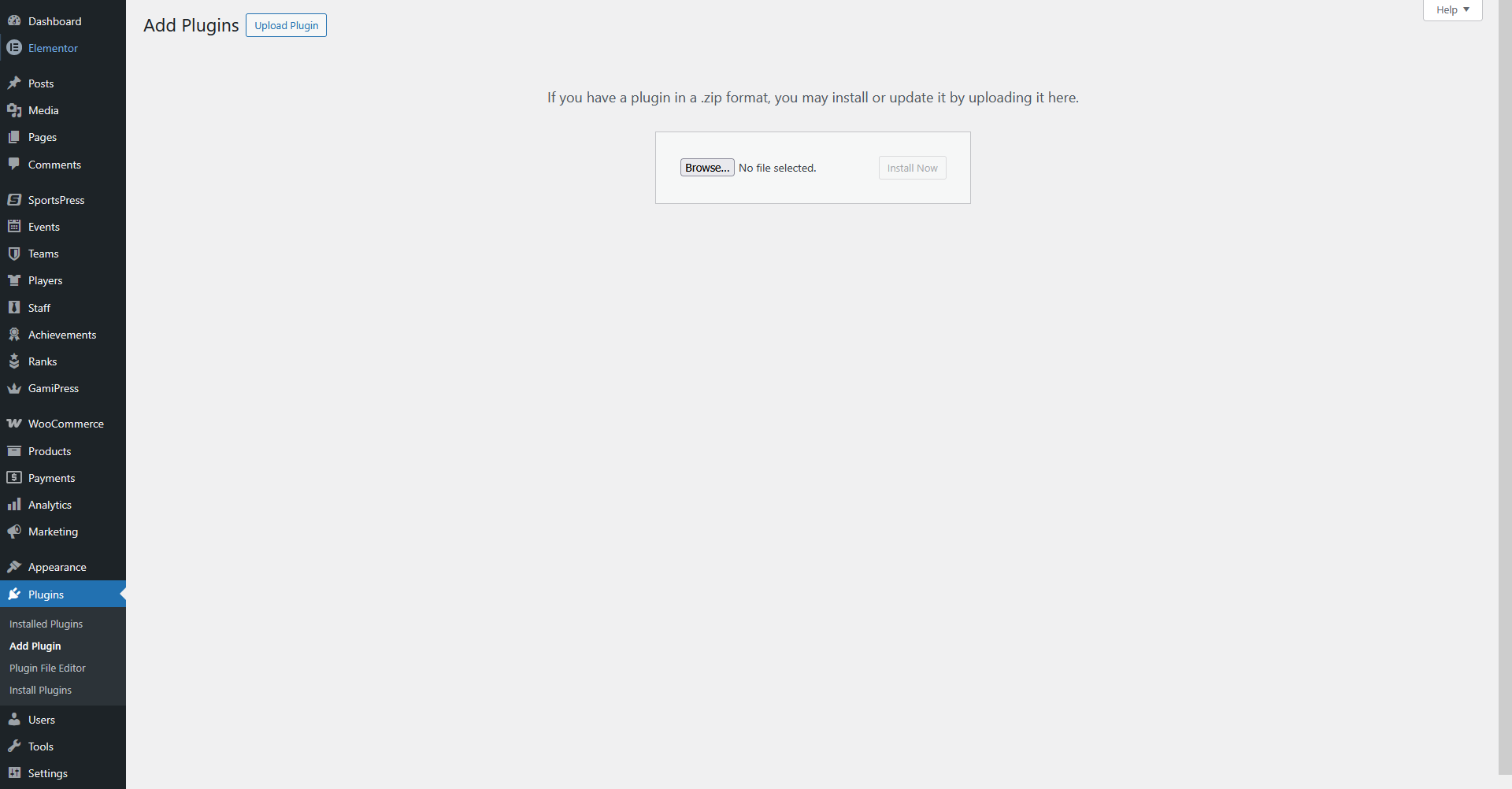
To install the plugin, go to your WordPress dashboard and follow these steps:
- Go to Plugins > Add Plugin
- Click on the Upload Plugin button at the top left side of the page
- Click Browse..., go to the folder where you have the plugin .zip file stored and select it
- Click on Install Now to install it
- After it installs, click on the Activate Plugin button to finish
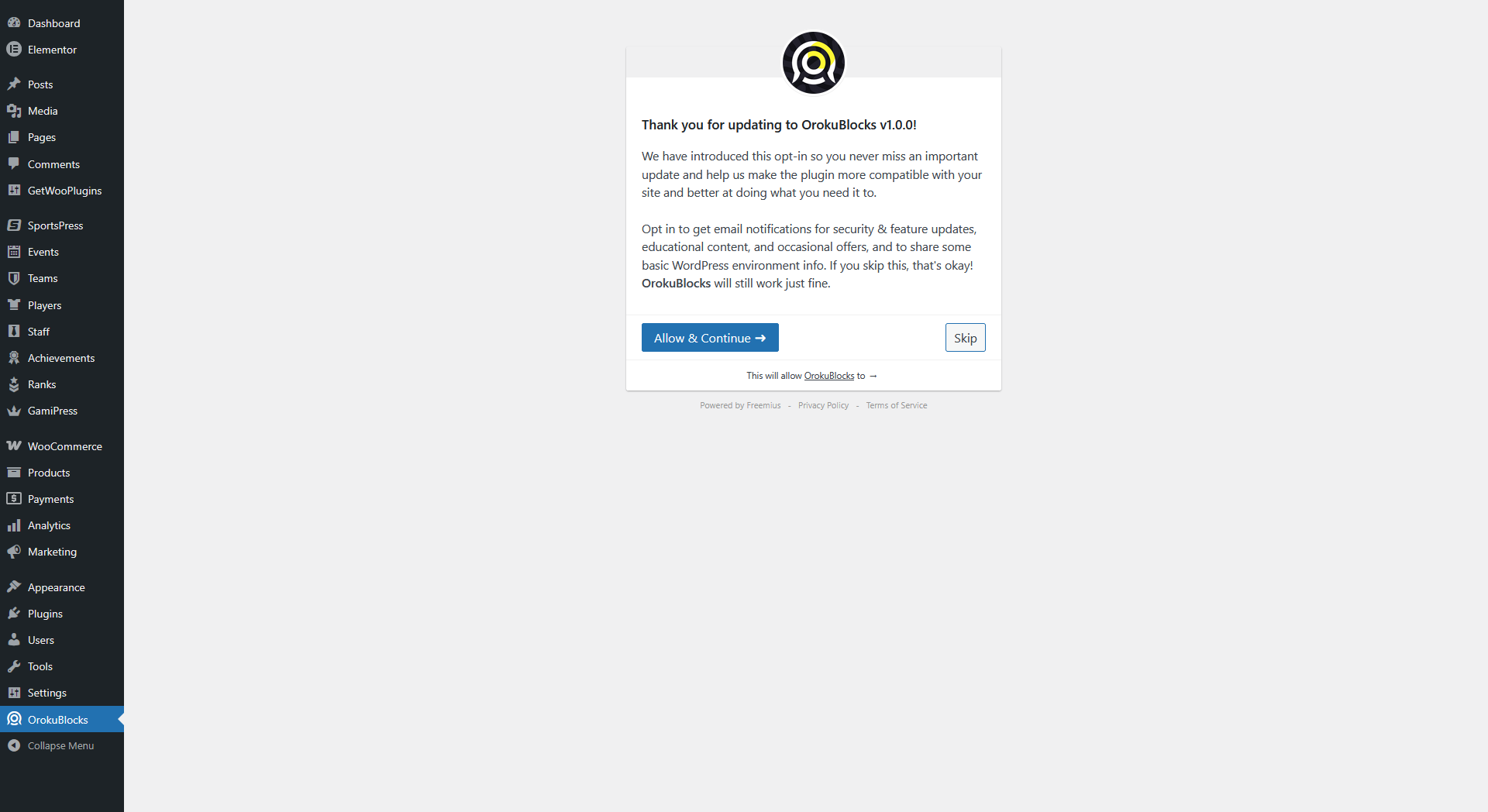
You will then be presented with the following screen, if you aren't redirected to this screen, you can access the plugin by clicking on the OrokuBlocks menu item that was added to your WordPress dashboard left sidebar.
Click on Allow & Continue or Skip to proceed.
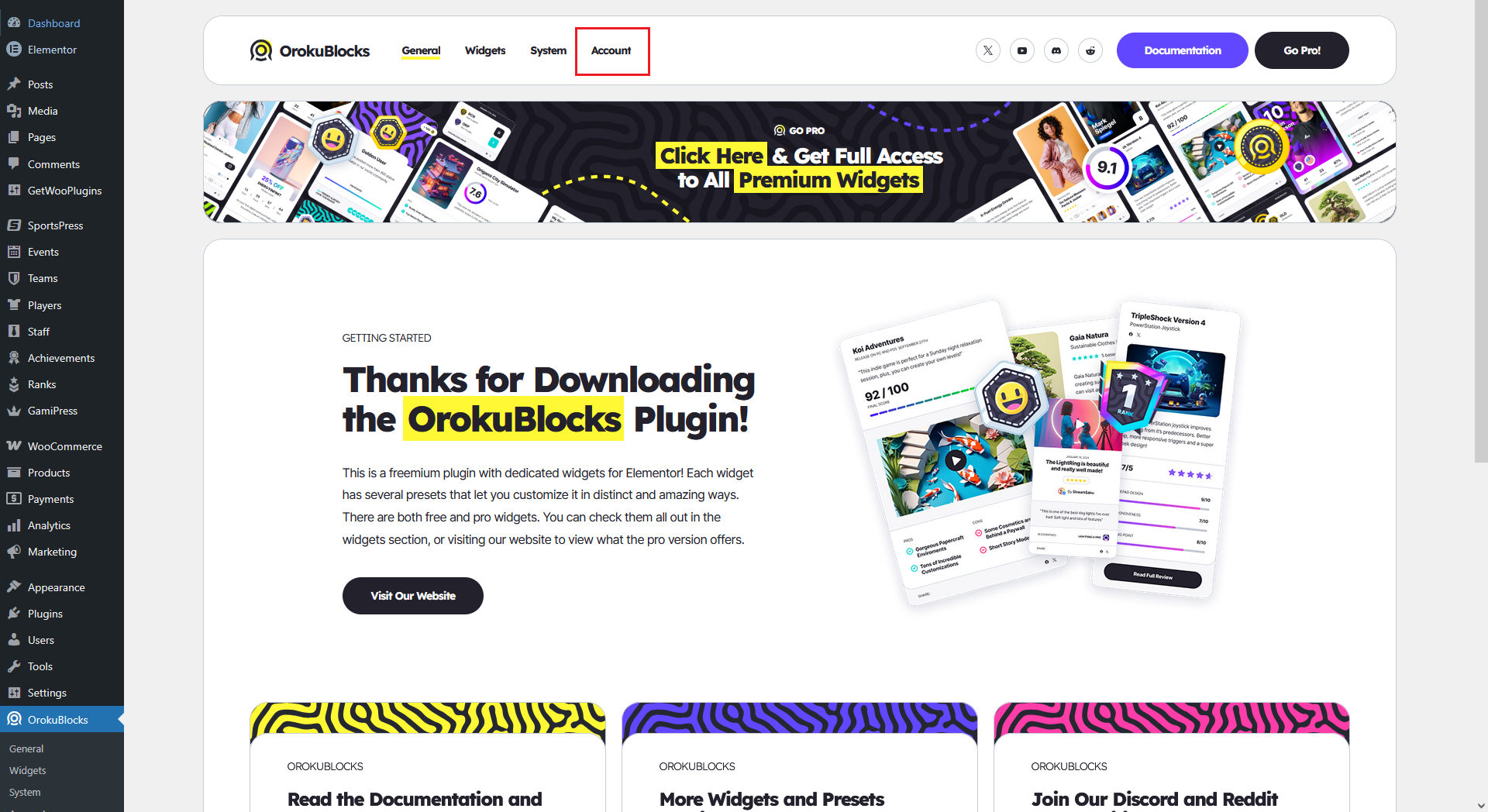
If you choose Allow & Continue, new menus will be added to the plugin: Account and Upgrade, that will allow you to manage your account and upgrade to premium versions of the plugin respectively.
If you have the Pro version of the plugin, you can repeat this process to install it by using the Pro version plugin .zip file.
Setup
If you are using the Pro version, you need to validate your purchase before you can gain access to all Pro features.
Purchase validation
In order to validate your purchase you need to enter you license key, you can either:
- Enter the license key when required
- Enter the license key manually
If the license key you entered is valid, the notification and several parts of the UI will update to reflect this and you will gain access to all Pro features!.
Enter the license key when required
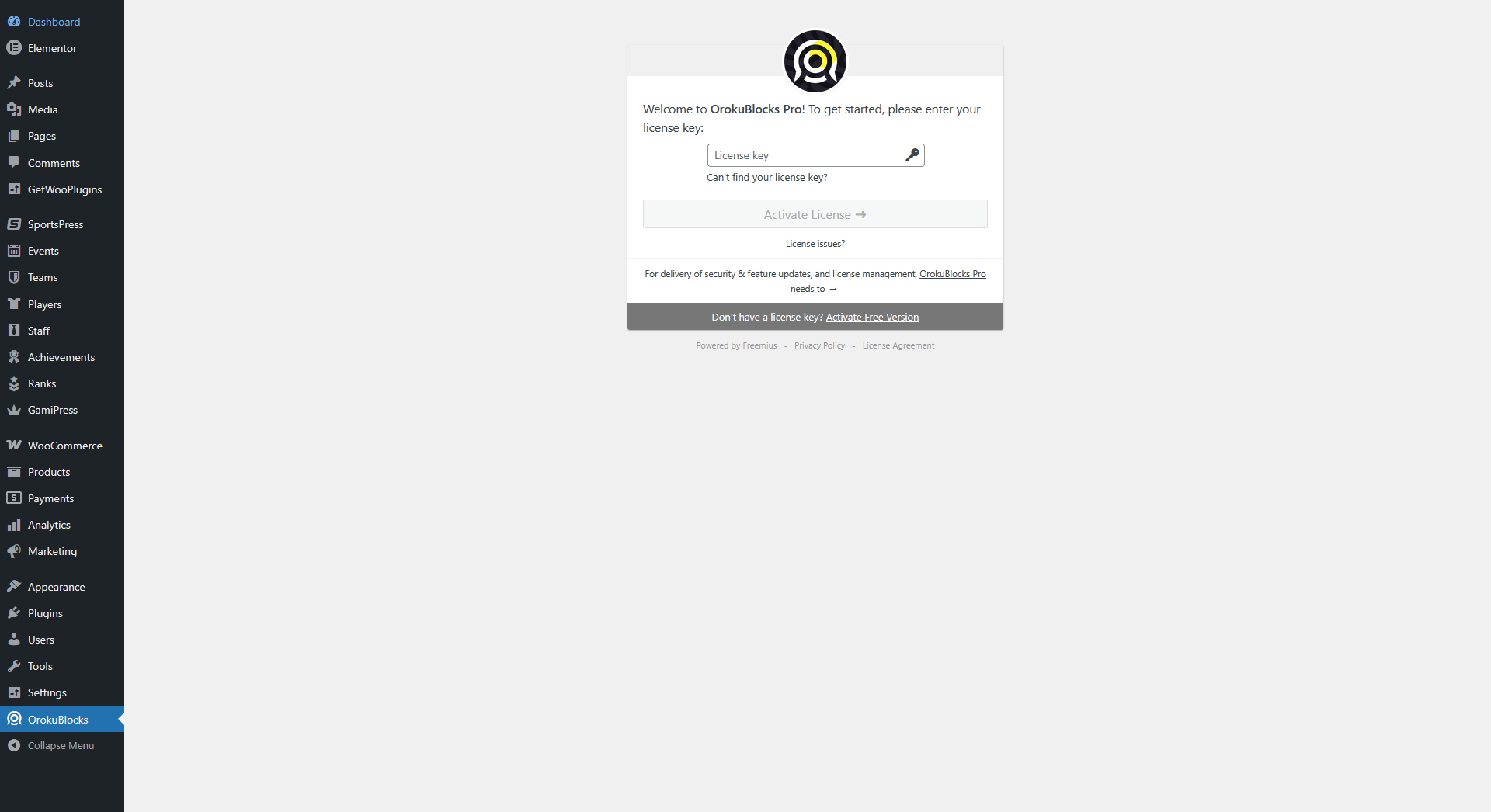
A screen will diplay asking for you to provide you license key to be able to access and use the plugin:
Enter the license key manually
There are two ways to enter your license key manually, either:
- Go to Plugins > Installed Plugins
- Find the OrokuBlocks Pro plugin and click on Activate License
Or:
- Go to OrokuBlocks > Account
- Under Plan, click on Activate License